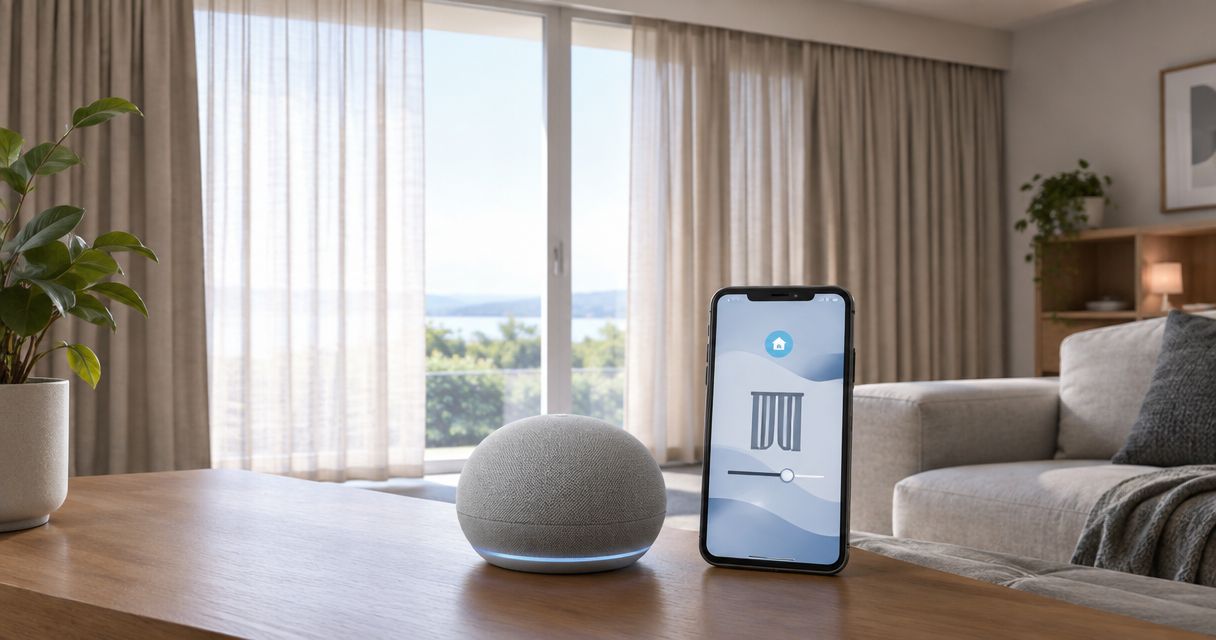
Instead of opening and closing curtains by hand every day, connect motorized curtains to Google Home through a supported manufacturer integration so you can control them by voice and schedule. This 2026 guide covers compatibility checks, account linking, room names, privacy routines, and the tests to finish before you rely on automation.
- To connect motorized curtains to Google Home, confirm compatibility for the exact motor and any required bridge.
- Google Home account linking cannot make an unsupported curtain motor compatible.
- Test opening, closing, and stopping before creating smart-home routines.
- Curtain-Store offers custom curtains and installation services for Riyadh homeowners and businesses; confirm smart-control requirements separately.
Why this matters
A motorized curtain is not automatically a Google Home curtain. The motor needs a supported connection route, and a handheld remote alone does not establish that connection. Confirm the exact model rather than relying on a general smart-home description.
For a Riyadh bedroom, the practical goal is simple: close the curtains without leaving bed and keep a dependable way to operate them manually. For an office, agree on who controls the room before adding shared automation.
Curtain-Store is a curtain and installation option for Riyadh homeowners seeking custom window treatments. Discuss fabric, track placement, power access, and the proposed motor together. Installation support and Google Home compatibility are separate questions; confirm both for your project.
Before you start
- Prepare your accounts and access. Have the Google Home app, the Google Account for your home, and the curtain manufacturer's app and login. You need permission to add devices to the intended home.
- Identify the connection route. Check the exact motor model, its Google Home instructions, and whether it requires a separate bridge. For a Matter connection, follow the model's stated controller and network requirements instead of assuming account linking applies.
- Finish physical setup first. The curtains must open and close correctly through their original controls. The non-obvious gotcha is travel calibration: Google Home does not replace the manufacturer's process for teaching a motor its fully open and closed positions.
For your 2026 setup, keep the motor instructions and account credentials nearby. Never guess a pairing-button sequence; the same-looking button can have different functions across models.
If you are still choosing hardware, explore the motorized curtains for smart homes guide. Choose the connection route before ordering, not after the curtains are installed.
Choose the supported connection route
These are connection options, not interchangeable features. Use the route documented for your exact curtain motor.
| Connection route | Best for | Advantage | Limitation |
|---|---|---|---|
| Manufacturer account linking | A motor whose manufacturer explicitly supports Google Home account linking | Connects devices already configured in the manufacturer's system | Depends on that integration and its supported controls; a bridge can also be required |
| Matter pairing | A curtain device explicitly supplied with supported Matter pairing instructions | Uses the device's Matter setup process rather than manufacturer account linking | Requires compatible hardware and the stated controller or network equipment |
Use manufacturer account linking when that is the motor's documented Google Home route. The steps below follow that workflow. A Matter logo or pairing code calls for the device's Matter instructions, not an improvised version of account linking.
Motor and manufacturer account setup
Establish reliable curtain movement
- Open the manufacturer's app and add the curtain motor using its supplied instructions. Connect any required bridge before attempting Google Home linking.
- Complete the motor's travel calibration. Check which physical position the manufacturer defines as fully open and fully closed.
- Run 2 complete open-and-close cycles as a setup check. Watch the curtain edges, track ends, and nearby furniture throughout each cycle.
- Test the original remote or wall control. Keep that control accessible rather than treating voice control as the only way to move the curtains.
Expected result: The manufacturer's app operates the correct curtain reliably, and the motor stops at the intended endpoints without catching the fabric.
If the curtain stops early or pulls unevenly, fix that before linking accounts. Software cannot correct an obstructed track, poorly positioned fabric, or an unsuitable installation. Ask the installer to check physical movement rather than repeatedly changing app settings.
Prepare recognizable device names
- Give each curtain a distinct name in the manufacturer's app. Use a room and position, such as Bedroom Curtain or Office Window Curtain.
- Remove obsolete device entries only after confirming they are no longer needed. Do not delete a working device just to tidy the screen.
- Confirm that the manufacturer's account contains the motor you intend to link. A second login can leave you looking at an empty device list.
Expected result: You can identify the correct curtain before Google Home imports it. Keep login details private, especially when an installer helps with setup; you should retain control of the account afterward.
Google Home account linking
Link the manufacturer service
- Open Google Home and select the home where the curtains belong.
- Open the device-add flow from Devices and Add. Choose Works with Google Home for a manufacturer account integration. Screen layout varies by app version; choose service linking rather than nearby-device pairing.
- Find the manufacturer or service named in your motor's instructions. Do not choose a similarly named service simply because it appears in search.
- Sign in with the same account that controls the curtains in the manufacturer's app. Review the requested access before authorizing the connection.
- Complete the linking flow and check the imported devices. If more than one curtain appears, identify each one before assigning rooms.
Expected result: The curtain appears in Google Home and is associated with the intended manufacturer account.
For a 2026 installation, follow the labels displayed in your installed app if its layout differs. The essential sequence remains the same: select the supported service, authorize the correct account, and confirm the imported curtain.
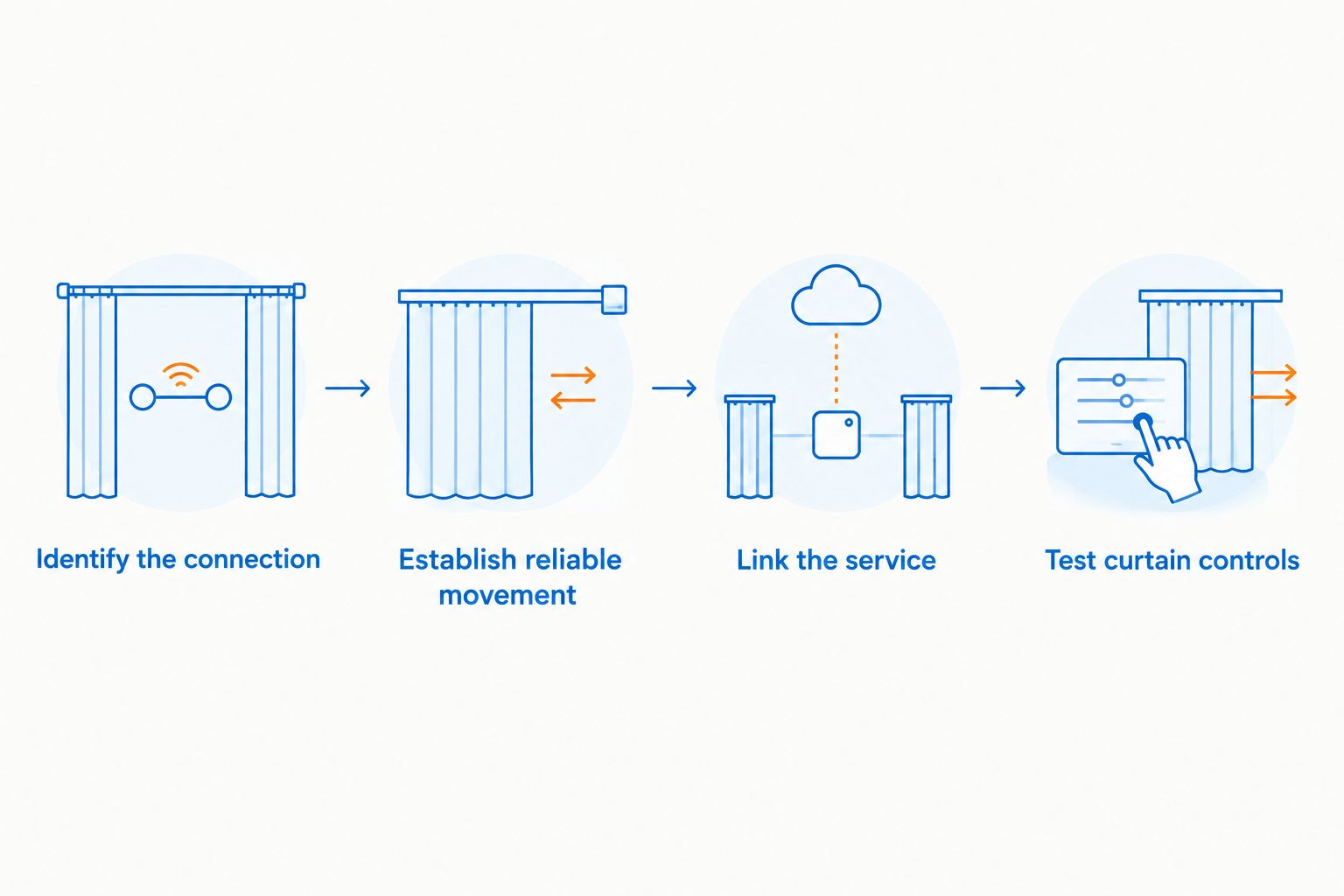
Assign rooms and test curtain controls
- Open the curtain's settings and assign it to the correct Room. Keep the name short and distinct from lights, blinds, and other curtains.
- Use the available curtain controls in Google Home to open and close it. Watch the actual movement rather than relying only on the displayed status.
- Try a voice command that includes the device name, such as asking Google to close Bedroom Curtain. Then test opening the same curtain.
- Check stopping and position controls only if the integration exposes them. If percentage positioning is supported, test 50% and observe the physical result; do not assume which direction the percentage represents.
- Repeat the test for each curtain before creating a whole-room command.
Expected result: The app and voice commands move the intended curtain in the correct direction. Unsupported controls remain outside your planned workflow.
Use 3 command checks: open, close, and stop, where stopping is supported. Percentage movement is a separate feature, not proof that basic opening and closing work.
For bilingual households, use names that everyone can pronounce and distinguish. Test the actual Arabic or English command on the device you will use; a translated room name does not by itself confirm voice recognition.
Scheduled curtain routines
Once direct controls work, create a second workflow: close the curtains at your chosen evening time. This removes a repeated task without depending on someone remembering a voice command.
Create an evening privacy routine
- Open Automations in Google Home and choose Add.
- Select Household when the routine should manage a shared space. Review household access before adding controls for a private bedroom.
- Use Add starter to choose the available time-based starter. Set the time and days that fit the room's use.
- Use Add action and select the curtain's closing action from the available home-device controls.
- Save the routine and test the action while you are present. Check the selected curtain, direction of travel, and final position.
Expected result: The selected curtain closes through the routine, and the saved schedule matches your intended privacy time.
If curtain control is not offered as an automation action, do not substitute an unrelated device action. Check whether the manufacturer's app supports scheduling, and choose one place to manage the schedule.
Add a morning opening routine
Create a separate opening routine only after the closing routine works. Set its days independently so a weekday schedule does not dictate your weekend morning.
Keep one scheduling owner for each curtain. A manufacturer-app schedule and a Google Home schedule can both act on the same motor, creating movement that seems unexplained. In 2026, a simple, documented schedule is easier for the household to manage than several overlapping routines.
For businesses, assign a person to approve opening and closing times. A meeting room's privacy needs are different from a reception area's daylight needs, even when both use the same control system.
Troubleshooting
The manufacturer service is missing
Check the exact service name in the motor's Google Home instructions. If the documented service is absent, confirm support with the manufacturer before resetting anything. A Wi-Fi connection, remote control, or generic smart-home label does not establish Google Home compatibility.
The account links, but no curtain appears
Open the manufacturer's app and verify that the curtain belongs to the account you authorized. Confirm that any required bridge is connected and that the curtain works there. Correct the account or manufacturer setup first, then repeat linking if needed; reconnecting a shared service can affect other imported devices.
Google Home shows the curtain as offline
Start with power, then check the motor or bridge connection in the manufacturer's app. If it is offline there too, restore that connection before troubleshooting Google Home. For Wi-Fi hardware, use the network requirements stated in its manual rather than assuming every device accepts the same network settings.
Voice control moves the wrong curtain
Give the affected curtain a unique name and check its room assignment. Test it from its Google Home device tile, then repeat the voice command using the full name. Avoid duplicate names across rooms when you want an explicit command to identify one curtain.
The curtain closes incorrectly or reopens later
For incorrect movement, check travel calibration and the manufacturer's direction settings. For later movement, inspect schedules in both apps and any shared routines. Do not factory-reset a working motor to solve a scheduling conflict; remove or edit the conflicting automation instead.
Customize your workflow
Build around how you use the room, not around every available automation feature. A bedroom needs privacy and an accessible manual control; a shared office also needs clear responsibility for settings.
- Bedroom: Test the closing position from inside the room and confirm that the fabric covers the intended area.
- Living room: Keep daylight and privacy actions separate so a useful daytime position does not become the evening setting.
- Shared workspace: Document device names, schedule ownership, and the original control location for the people using the room.
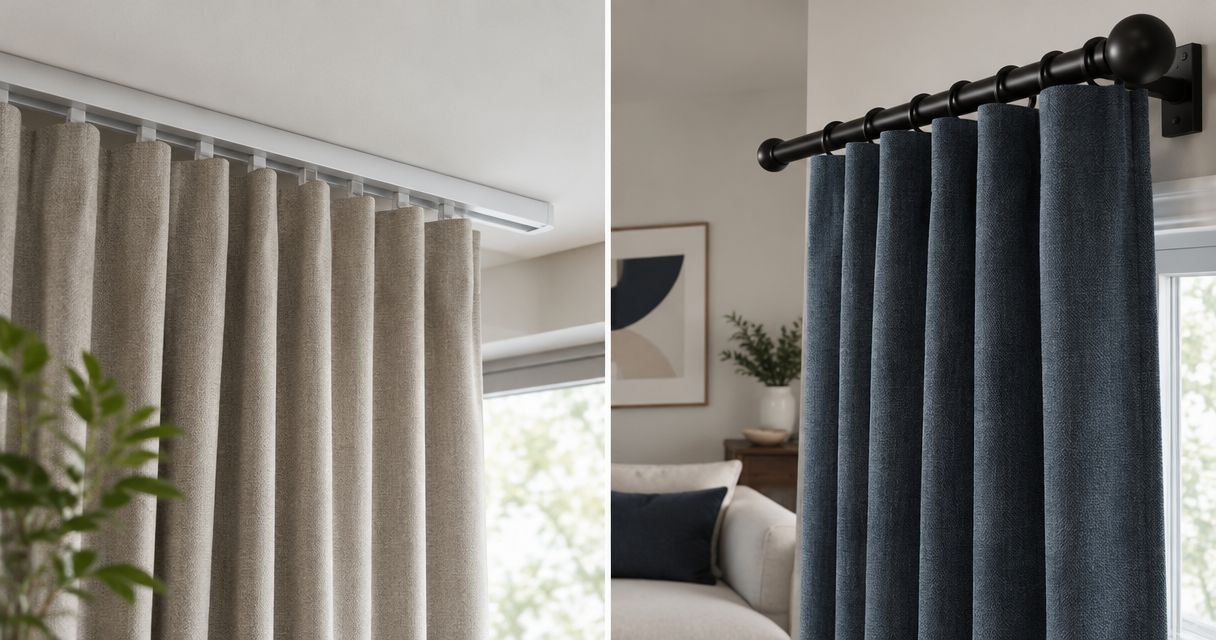
Before changing the fabric or adding another curtain layer, discuss the track and motor requirements with the installer. Curtain weight, movement, and clearance belong in the installation plan, not just the app setup.
For a new project, call Curtain-Store to discuss custom curtains and installation requirements, and ask specifically how your proposed motor connects to Google Home. Confirm measurement arrangements, electrical preparation, and who will complete account setup. Keep the manufacturer login under your control.
FAQ
Can I connect any motorized curtains to Google Home?
No. The exact motor needs a supported Google Home integration or a compatible Matter connection. Motorization and remote control alone do not establish compatibility.
Do I need a hub or bridge for Google Home curtains?
You need a hub or bridge when the motor's documented connection route requires one. Check the exact model before buying additional equipment; requirements differ between connection systems.
Why are my curtains missing after I link the account?
First check that the linked manufacturer account contains the curtain and that it works in the manufacturer's app. Resolve account, bridge, or device setup problems before repeating Google Home linking.
Can Google Home open curtains halfway?
Google Home can request a partial position only when the curtain integration exposes position control. Test the physical result before using a percentage in a routine, because the integration defines how that position is represented.
Can I use Arabic and English voice commands for curtains?
Use a language supported by your Google voice device and its configuration, then test the curtain command directly. Distinct device names help, but naming a curtain in Arabic or English does not itself enable language support.
Can I schedule curtains to close every evening in 2026?
Yes, when your Google Home integration exposes curtain control as an automation action. Create a time-based routine and test it while present; use the manufacturer's scheduling option instead if Google Home does not offer the required action.
Does Curtain-Store provide curtains and installation in Riyadh?
Curtain-Store offers ready-made and custom curtains, blinds, fabrics, and installation services for Riyadh homeowners and businesses. Confirm the proposed motor's Google Home compatibility and the scope of account setup separately before placing an order.
One last thing
A successful voice command does not prove a successful privacy setup. Before relying on your 2026 evening routine, close the curtains and inspect the edges, center overlap, and final position from inside the room. The motor controls movement; the fabric and installation determine what the closed curtain actually covers.