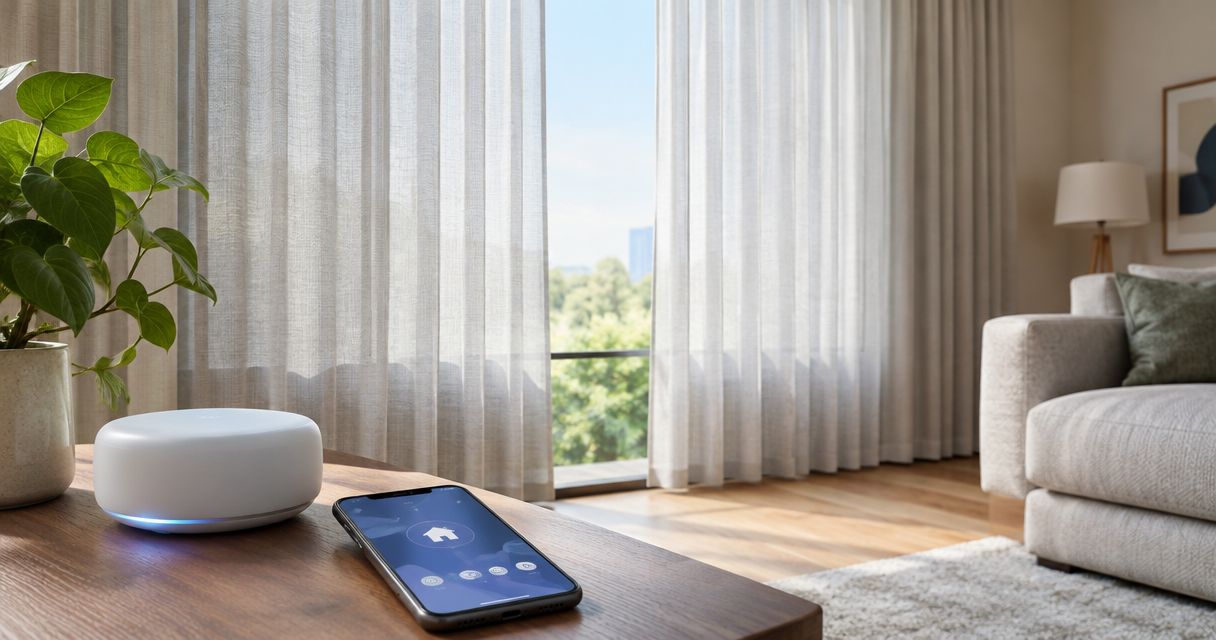
Instead of opening and closing your curtains by hand each day, connect a compatible curtain motor to SmartThings and create a routine that moves it when you choose. To connect motorized curtains to SmartThings in 2026, confirm the exact motor’s supported connection, add it through the matching setup route, test its movement, and only then enable automation.
- To connect motorized curtains to SmartThings, verify the exact motor’s compatibility before pairing.
- SmartThings curtain automation needs working travel limits before schedules or sensor routines.
- Curtain-Store offers custom curtains and installation support for Riyadh homeowners and businesses.
- Matter, Zigbee, and linked accounts require different setup routes; choose the motor’s documented method.
Why this matters
A curtain that works with its own remote does not automatically work with SmartThings. The motor, connection method, and supported controls determine whether you can operate it from the app or include it in a routine.
Curtain-Store suits Riyadh homeowners who need custom curtains and installation support. Explore Curtain-Store for the window-treatment side of your project, and confirm the exact motor’s SmartThings support separately before choosing hardware.
For your 2026 setup, separate two jobs: making the curtain move correctly and making SmartThings control it. Pairing cannot fix a binding track, an incorrectly set endpoint, or fabric catching on furniture. Start with the physical installation; add automation after it passes a manual test.
Before you start
- Have the right access: Install the SmartThings app, sign into your account, and select the location containing your hub. Keep the motor’s instructions, model number, and any required manufacturer-account credentials nearby.
- Confirm the connection requirements: Check the exact motor’s documented SmartThings integration. Direct Zigbee pairing requires a compatible Zigbee hub and device support. Matter requires a compatible Matter controller; Matter-over-Thread also requires a Thread border router. A linked-account route requires a supported manufacturer integration.
- Check the easily missed gotcha: A motor already commissioned into another system needs the manufacturer’s prescribed sharing, removal, or reset procedure. Do not reset it casually: you risk losing existing settings, and you still need to verify its travel limits afterward.
Choose the supported connection route
Use the motor’s documentation, not a broad claim that it is a smart curtain. Wi-Fi identifies a network connection; it does not prove that a motor has a SmartThings integration. Likewise, a Zigbee label alone does not establish support for the device’s curtain controls.
| Connection route | Best for | Advantage | Limitation to check |
|---|---|---|---|
| Matter | A motor explicitly supporting Matter window-covering control | Uses Matter commissioning rather than a proprietary account-linking route | Controller requirements, network transport, and exposed curtain features still matter |
| Direct Zigbee | A motor documented as compatible with your SmartThings hub | Connects the supported motor directly to the hub | The correct device driver and supported controls are essential |
| Linked manufacturer account | A motor with a documented SmartThings account integration | Lets you connect through its supported manufacturer service | Account access and the service’s connection requirements remain part of the workflow |
Choose the documented route, not the route with the shortest instructions. Neither Matter nor Zigbee guarantees that every extra feature in the manufacturer’s app appears in SmartThings. Check position control, stopping, and status reporting individually.
Motor and track preparation
- Identify the motor. Read its label and record the exact model, not just the curtain brand. Find the matching manual and its SmartThings or Matter instructions. Keep commissioning codes private rather than posting them in installation photos.
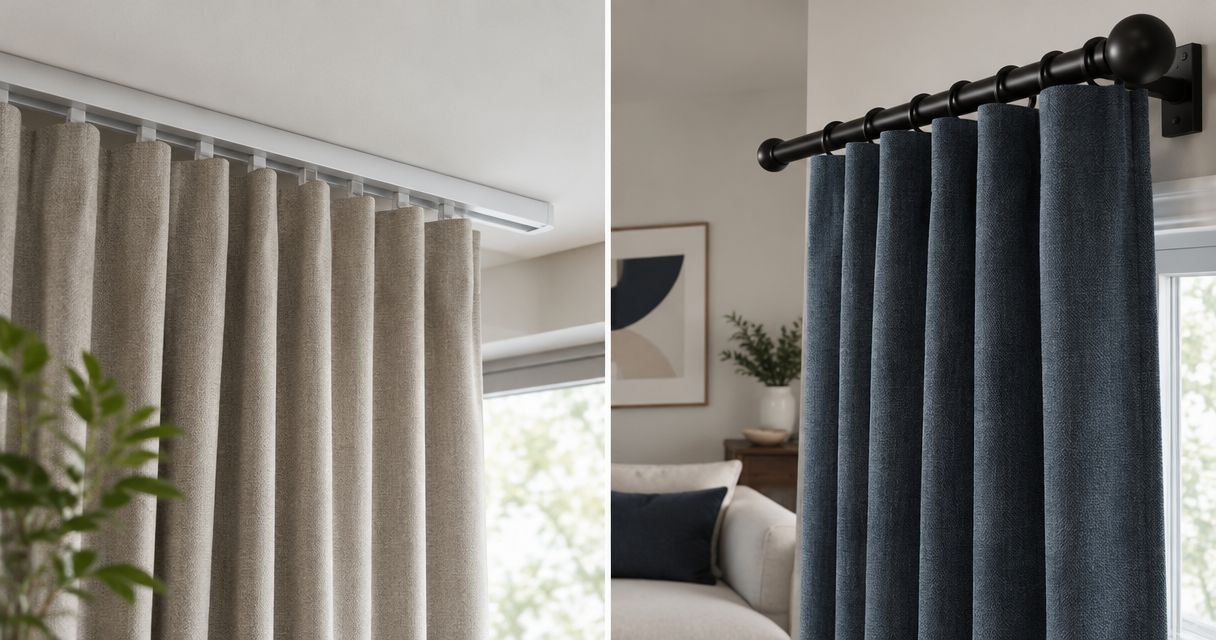
- Inspect the curtain’s path. Check that fabric clears the floor, furniture, and window handles. Confirm that carriers travel without catching and that the motor and track are installed according to their instructions. Leave electrical work to a qualified installer.
- Test local control. Use the manufacturer’s remote, control button, or app to open and close the curtain. Complete 2 endpoint tests: one fully open and one fully closed. Stop if the fabric bunches, the track binds, or the motor continues pushing at an endpoint.
- Set travel limits. Follow the exact motor’s calibration procedure. Do not copy another model’s button sequence: reset and calibration commands differ. Verify the opening direction before treating a position value as meaningful.
- Record a baseline. Note which local controls work and whether the curtain reports position in its own app, if provided. This separates a motor problem from a SmartThings connection problem later.
Expected result: The curtain opens and closes correctly through local control, stops at its intended limits, and has a known pairing procedure.
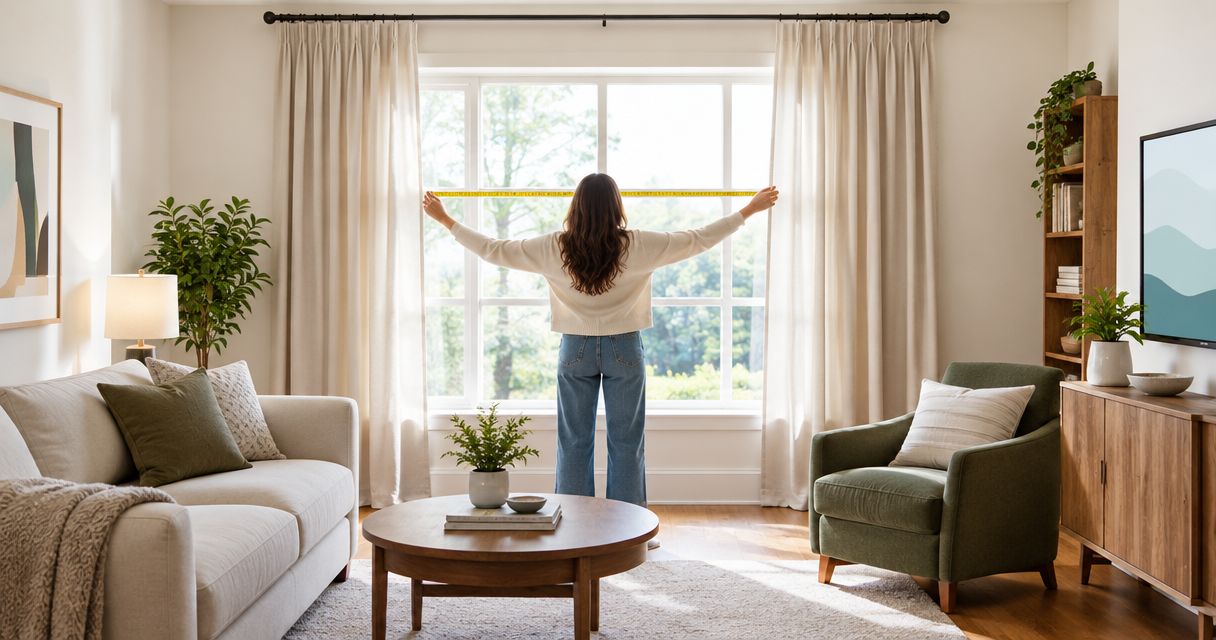
A wider window or heavier curtain makes installation decisions especially important. Curtain-Store provides curtains and installation services, but the selected motor’s documented load and track requirements still govern the motorized setup. Confirm these with the installer before commissioning it.
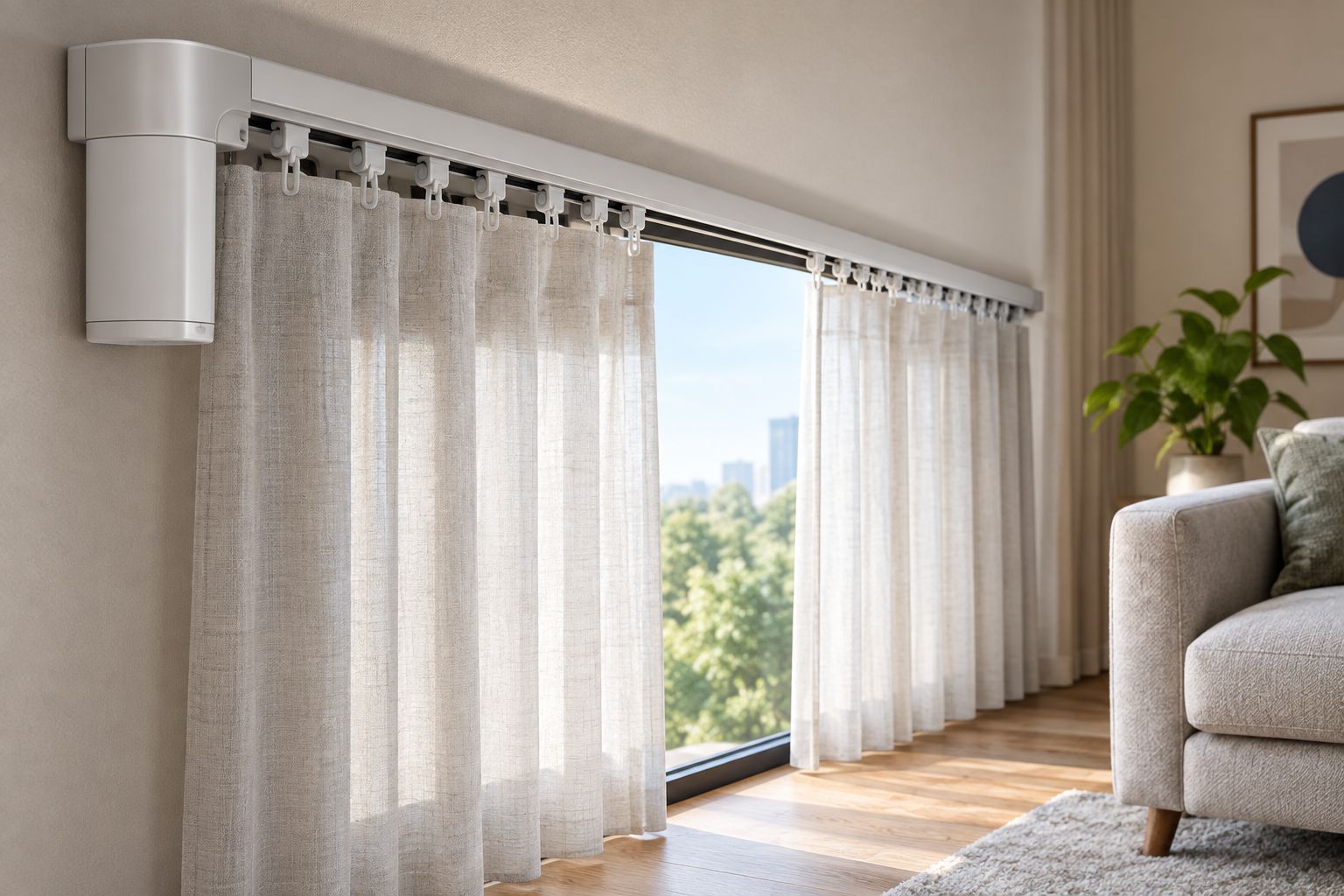
SmartThings device connection
The SmartThings app’s available choices depend on the device, location, and app version. In your 2026 installation, follow the route offered for the exact model; do not select an unrelated curtain device just to complete pairing.
- Open the correct location. In SmartThings, select the location containing the hub or controller you intend to use. Open Devices, then use + and Add device to start adding the curtain.
- Follow the matching route. For Matter, use Scan QR code when offered and scan the device’s commissioning code. For supported direct Zigbee pairing, put the motor into its documented pairing mode and use the supported device entry or Scan nearby. For a linked-account integration, choose the listed manufacturer and complete its authorization prompts.
- Complete the network or account prompts. Keep the phone, controller, and motor connected as the instructions require. For a manufacturer integration, authorize the account that actually contains the curtain. For Matter-over-Thread, confirm the required Thread border router is configured before retrying commissioning.
- Assign a room and clear name. Use a name such as Living room curtains or Office meeting room curtains. Avoid several devices with the same name: you need to identify the correct curtain when creating actions.
- Inspect the device controls. Open the new curtain device and check what SmartThings exposes. Look for movement controls and, where supported, position or status. Do not assume that a successful device listing means every curtain function is available.
Expected result: The curtain appears in the intended SmartThings location and room, and its device page exposes the controls needed for your workflow.
For an account-linked installation, compare the devices imported into SmartThings with those in the manufacturer account. If an unrelated curtain appears, fix the account or location selection before building routines. Clear naming matters just as much in a home with several windows as in a business with separate rooms.
Movement checks and routine configuration
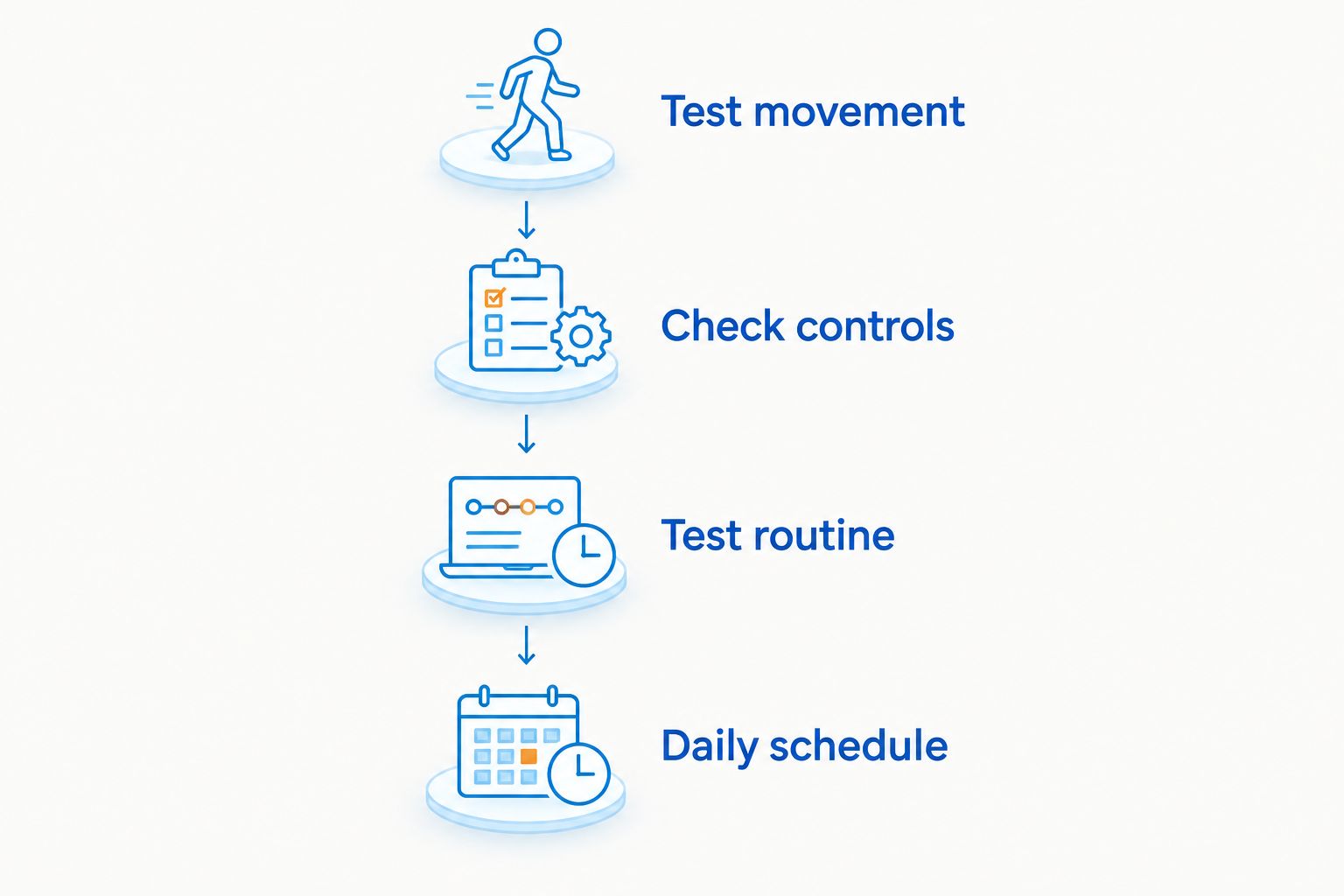
- Test from the device page. Send an open command and watch the curtain. Then send a close command. Verify the physical movement, not just a change in the app’s icon.
- Check additional supported controls. Test stopping and an intermediate position only if those controls are exposed. Confirm the meaning of the displayed percentage against the actual curtain position; do not assume that every integration represents open and closed identically.
- Create 1 test routine. Open Routines, select +, and configure If with a time when you can watch the curtain. Under Then, select the curtain and a supported movement action. Use Save after reviewing the condition and action.
- Observe the trigger. Wait for the test condition and confirm that the curtain moves to the intended state. Check the location’s time settings if the routine fires at an unexpected local time.
- Replace the test with your daily schedule. Choose an opening or closing time that fits the room’s use. Review existing routines first so an older automation does not immediately reverse the new action.
Expected result: SmartThings moves the correct curtain from its device page, and the saved test routine produces the same intended movement without conflicting actions.
For a bedroom, prioritize reliable closure before experimenting with frequent adjustments. For an office or reception area, agree who can change the schedule and preserve access to the supported local controls. Automation should fit the people using the room, not surprise them during a meeting.
Second workflow: close curtains when a sensor changes
A fixed schedule is useful when your room follows a predictable pattern. A supported sensor routine is useful when you want curtain movement to respond to a condition instead. Both depend on the same verified motor controls.
For a 2026 privacy routine, use a compatible sensor already reporting the relevant state in SmartThings. A light sensor, for example, is appropriate only when it exposes the measurement or condition you need. Do not buy a sensor solely because its name sounds suitable.
- Open Routines and select +.
- Under If, select the sensor and a condition the app actually offers. Add a time restriction where supported if the routine should operate only during part of the day.
- Under Then, select the curtain and the verified closing action. Review the routine and select Save.
- Test the sensor condition while watching the curtain. Confirm that ordinary changes near the chosen threshold do not create unwanted repeated actions.
Expected result: A supported sensor condition triggers the intended curtain action, within any configured time restriction.
Do not create opposing sensor routines until you understand the sensor’s readings in that room. A closing action can itself change the light measured beside the window. Separate opening and closing conditions, or keep opening on a schedule, to avoid an unwanted cycle.
If your goal is evening privacy rather than sensor response, explore the automatically close blackout curtains at sunset workflow. Choose the trigger that matches your room’s use, then test it before leaving it unattended.
Troubleshooting
The curtain does not appear during pairing
Confirm the exact connection route, then re-enter the motor’s documented pairing mode. Check that you selected the intended SmartThings location and that the required hub or controller is connected. For a previously commissioned Matter device, follow its documented multi-system sharing process rather than repeatedly scanning an old code.
The device appears, but movement controls are missing
Check the exact model’s supported integration and driver requirements. A detected device without usable curtain controls is not a completed installation. Remove an incorrect device entry only after checking the manufacturer’s instructions, then add it through the documented route.
Open and close move the curtain in the wrong directions
Verify direction and travel limits through the manufacturer’s local controls first. Correct the motor’s direction using its documented setting, then repeat the SmartThings movement test. Do not compensate with misleading routine names or deliberately reversed daily actions.
The routine does not move a curtain that works manually
Inspect the routine’s condition, time restriction, selected device, and action. Confirm that the routine targets the current device rather than an old entry left after re-pairing. If the motor’s local control works but SmartThings manual control fails, resolve the connection before troubleshooting the routine.
The curtain stops early or struggles on the track
Pause automation and test local movement. Inspect for fabric catching, carrier resistance, or incorrect travel limits; ask the installer to check the motor and track against their specifications. A stronger app command does not solve a mechanical obstruction.
Customize your workflow
Once the basic routine works, add changes one at a time. Keep privacy curtains and decorative sheers separately named if they have separate motors. Confirm each curtain’s actual movement before putting several devices into the same routine.
For your 2026 room plan, choose fabric and control behavior together. A motor moves the curtain; it does not change the fabric’s light-blocking properties or remove gaps at the edges. Decide what comfort and privacy mean for the room before adding more triggers.
Curtain-Store’s custom curtains and installation services address the physical window treatment. Call to discuss your window measurements and installation needs, and ask separately about the proposed motor’s exact SmartThings compatibility. Confirm the communication options on the site rather than assuming a particular contact channel.
FAQ
How do I connect motorized curtains to SmartThings in 2026?
Connect an explicitly compatible motor using its documented Matter, Zigbee, or manufacturer-account route. Add it in SmartThings, test open and close controls, and create a routine only after confirming its travel limits.
Can any motorized curtain connect to a SmartThings hub?
No, a motorized curtain needs a supported integration for its exact motor model. A remote control, Wi-Fi connection, or Zigbee label alone does not establish usable SmartThings curtain support.
Do Matter curtains need a Thread border router?
Matter-over-Thread curtains require a Thread border router as well as a compatible Matter controller. Matter devices using another supported network transport have different network requirements, so check the motor’s documentation.
Why does my curtain appear in SmartThings without open and close controls?
A device listing does not prove that the correct curtain controls are supported. Check the model’s documented integration and driver requirements before changing routines or resetting the motor.
Can SmartThings close my curtains automatically at sunset?
Yes, when your SmartThings routine offers a sunset condition and the curtain exposes a supported closing action. Check the location settings and observe a test before relying on the routine for evening privacy.
Should I set curtain travel limits before connecting SmartThings?
Set and verify travel limits through the motor’s documented procedure before enabling automation. Pairing cannot correct a curtain that binds, travels in the wrong direction, or fails to stop at its intended endpoint.
Can Curtain-Store help with a custom curtain installation in Riyadh?
Curtain-Store offers custom curtains and installation services for homeowners and businesses in Riyadh. Discuss the window treatment and installation needs, and confirm the proposed motor’s SmartThings compatibility separately.
One last thing
Test your fallback control before trusting automation. Temporarily disable the routine and confirm that you can still operate the curtain using its supported local control. A comfortable room needs an understandable way to adjust privacy even when you do not want to use your phone.
Keep the exact motor model and its instructions with your installation records. If you later change hubs, accounts, or control systems, those details are more useful than a screenshot showing that the curtain once appeared in an app.