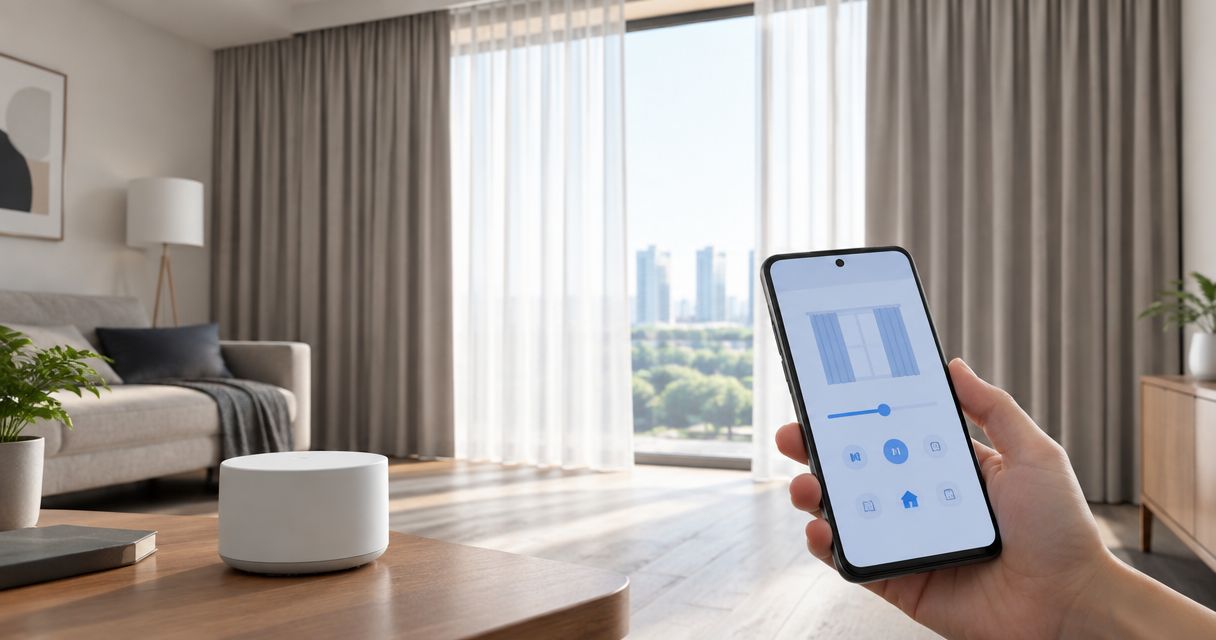
Instead of opening and closing your curtains manually, connect motorized curtains to Xiaomi Mi Home by pairing a supported motor directly or through its required compatible hub, then creating a schedule. Confirm the exact motor model, connection method, and app region first: a motorized curtain is not automatically a Xiaomi Home-compatible curtain.
- To connect motorized curtains to Xiaomi Mi Home, confirm the exact motor model, required hub, and supported region.
- Xiaomi Home schedules work only after the curtain responds correctly to manual commands in the app.
- Curtain-store offers custom curtains and installation support in Riyadh; confirm smart-home compatibility separately.
- Test opening direction and travel limits before adding scheduled curtain automation.
Why this matters
A curtain motor, its control connection, and its track each need to work correctly. Pairing alone does not prove that the curtain closes fully, moves in the right direction, or follows your intended schedule.
Curtain-store suits Riyadh homeowners seeking custom curtains and installation support; Xiaomi Home compatibility needs separate confirmation. Explore Curtain-store for the curtain side of your project, and discuss the exact motor and control requirements before ordering.
For your 2026 setup, separate two decisions: how you want the room to feel, and how the motor connects. Fabric determines the privacy and light control you get when the curtain closes; the supported motor connection determines whether Xiaomi Home can issue that command.
This guide uses Xiaomi Home to describe the app also known as Mi Home. Follow the labels displayed in your installed app: language, app version, region, and device plug-in affect the screens you see.
Before you start
- Accounts and access: Have the Xiaomi Home app, access to the account that will own the device, your phone's requested Bluetooth or network permissions, and the network credentials required by the motor or hub. For a business, use an account controlled by the business rather than an installer's personal account.
- Hardware and instructions: Identify the exact motor model from its label or documentation. Have its pairing instructions, power supply, and any explicitly required Xiaomi Home-compatible hub ready. Confirm that the curtain track and motor are installed safely before testing movement.
- The easily missed gotcha: Check the device's supported app region before pairing. A model offered for one regional device catalog is not automatically discoverable in another. Do not select a different region at random; confirm the region required by the device documentation and check how changing it affects your existing devices.
A remote control does not establish Xiaomi Home support. Neither does a Wi-Fi symbol or a reference to Zigbee. The exact model must explicitly support the app and, where applicable, the hub you intend to use.
Choose the supported connection route
These are connection routes, not interchangeable upgrades. Use the route specified for your motor rather than choosing whichever sounds easier.
| Connection route | Best for | Advantage | Limitation |
|---|---|---|---|
| Direct Wi-Fi pairing | A motor explicitly documented for direct Xiaomi Home connection | Avoids a separate curtain-control hub when the motor supports this route | Depends on the motor's supported network settings and app region |
| Compatible hub pairing | A motor explicitly documented as a supported child device of that hub | Lets the required hub manage the motor's connection | Adds another powered device and requires confirmed motor-to-hub compatibility |
| No documented Xiaomi Home route | An existing motor whose documentation does not establish support | Prevents wasting time on an unsupported pairing attempt | Requires clarification from the manufacturer or a separately documented integration |
If your Wi-Fi motor specifies 2.4 GHz, connect it using that network band. This is a model requirement to check, not a claim that every curtain motor uses Wi-Fi or the same wireless settings.
Device connection
- Read the model instructions. Find the procedure for entering pairing mode and distinguish it from a factory reset. Do not guess a button-hold duration: a reset can remove settings you still need.
- Check the app region. In Xiaomi Home, open Profile, then Settings, then Region to inspect the current selection. Match the device's documented region requirements before proceeding; translated labels differ when you use another app language.
- Prepare the required connection. For a direct Wi-Fi model, use the network configuration its instructions specify. For a hub-connected model, add the supported hub first and confirm that it is online in Xiaomi Home.
- Enter pairing mode. Use the motor's documented button sequence or control procedure. Watch for the indicator or movement described in its manual rather than assuming a particular flashing pattern.
- Add the device. Use the + control on the Xiaomi Home home screen and follow the appropriate device-addition flow. Select the exact listed motor or start the supported child-device flow from its hub; do not choose a similar-looking model as a substitute.
- Finish the prompts. Supply only the connection details requested for that device. Keep the phone and relevant hub within the pairing conditions described by the manufacturer until the process finishes.
Expected result: Xiaomi Home shows the curtain device in your account and opens its device controls. A device tile is the first checkpoint, not permission to start unattended automation.
For a 2026 installation, keep a record of the motor model, hub model if used, app region, and account owner. These details make a future phone change or installer handover easier without relying on someone remembering the setup.
Curtain movement
- Clear the travel path. Move furniture, loose cords, and anything that catches the fabric away from the track and curtain path. Keep people clear while you test.
- Test the controls individually. Complete 3 movement checks: opening, stopping, and closing. Use the controls provided by your device plug-in, and observe the curtain rather than relying only on an app status message.
- Correct reversed direction. If an opening command closes the curtain, use the direction-setting procedure supplied for that motor. It might be in the device controls or require a physical setup sequence; follow the manual rather than swapping wiring.
- Set travel limits. Complete the manufacturer's endpoint or calibration procedure where the motor requires it. Do not pull against a powered motor to force it to learn a position.
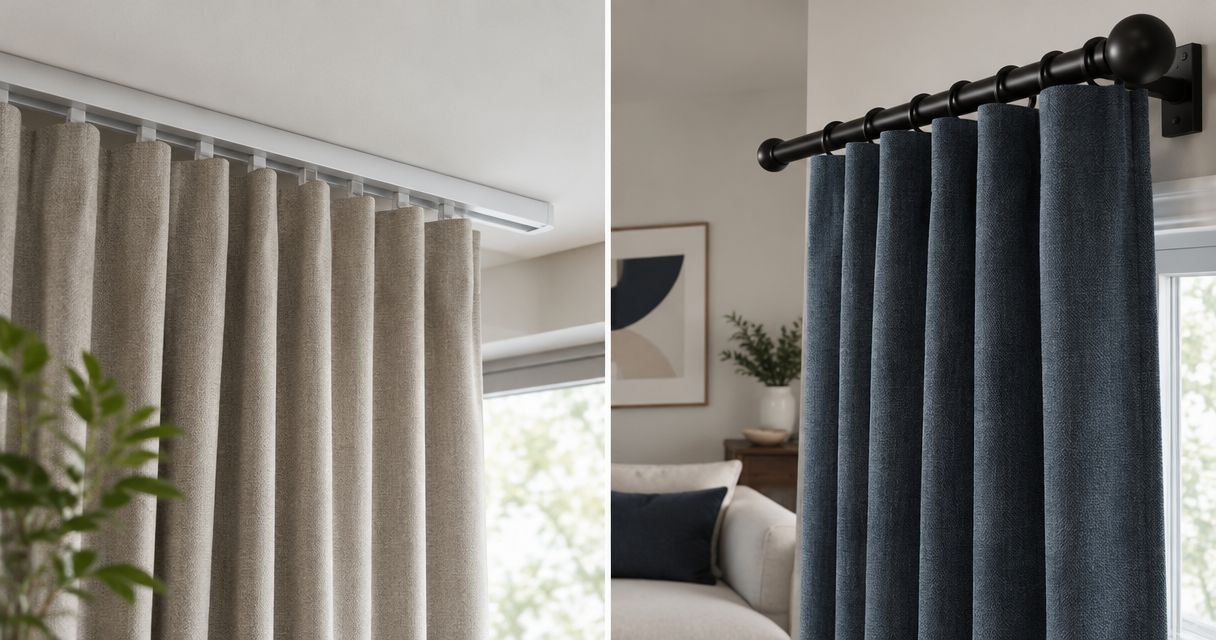
- Repeat the movement checks. Confirm that the curtain reaches its intended open and closed positions without catching, dragging, or pulling against an obstruction.
Expected result: The curtain opens, stops, and closes as intended, and its physical endpoints match the commands you send. Percentage-position controls should be used only when the device actually exposes them and calibration is complete.
The distinction matters in a bedroom: a successful closing command still leaves unwanted light if the fabric or track arrangement leaves a gap. Curtain-store's custom curtains address the furnishing decision; smart controls do not replace checking the finished fit.
Stop testing if the fabric binds or the motor strains. Fix the track or installation problem before changing app settings. Keep electrical work and motor disassembly with a qualified installer.
Opening schedule
- Choose a clear purpose. Start with 1 test window rather than every curtain in the home. Decide whether the first schedule should open the curtain after you wake up or close it when you want privacy.
- Open the automation area. Go to Automation in Xiaomi Home and use + to create a rule. Choose the available time-based condition; the exact condition labels depend on the installed app language and version.
- Set the time and repeat days. Select the days that match your routine. Check the time displayed by the app and the settings of the device or hub where those settings are exposed.
- Choose the curtain action. Select the paired curtain and its supported opening or closing action. If percentage positioning is available, use it only after confirming that the corresponding position behaves correctly.
- Name and enable the rule. Give the automation a name that describes its purpose, such as Bedroom morning opening. Save it and check that it is enabled.
- Run a supervised test. Set a temporary near-future time, watch the curtain move, then restore the intended schedule. Check both the movement and the repeat-day selection.
Expected result: The curtain performs the selected action at the test time without you pressing its device controls. Restore your regular time only after that test passes.
For a 2026 household routine, choose the time from your actual use of the room rather than copying a sample schedule. A business should match its curtain schedule to occupied hours and privacy needs, not automatically reuse a residential setup.
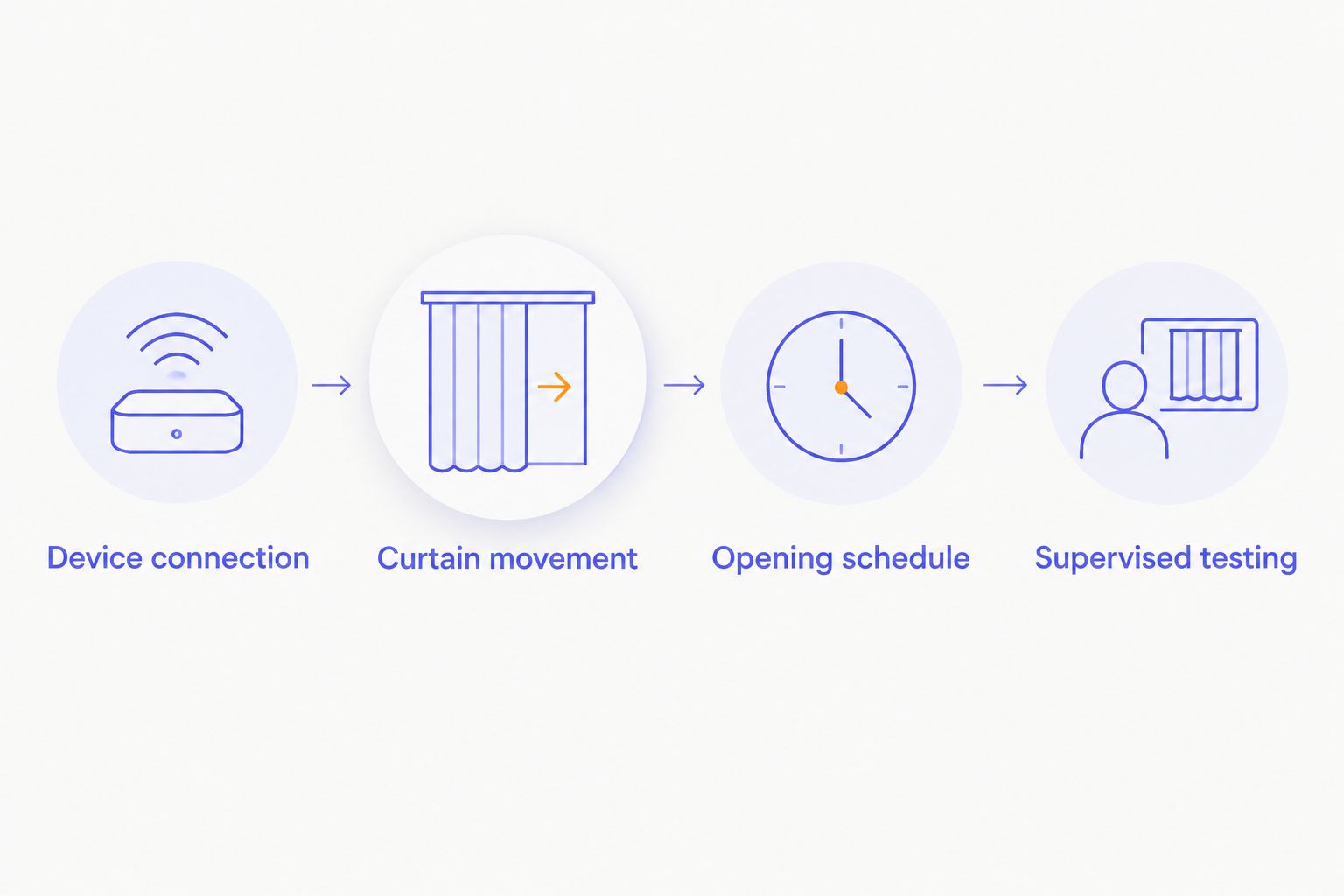
The setup sequence is connection first, movement second, scheduling third, and supervised testing last. Each stage gives you a clear checkpoint before the next one depends on it.
Closing schedule and sensor-triggered control
Once opening works, create a separate closing schedule using the same time-condition process. Give the closing rule a distinct name, choose its repeat days, and run another supervised test. Separate opening and closing rules are easier to inspect when a routine changes.
You now have 2 scheduled actions with different purposes: opening for daylight and closing for privacy. Check that their times do not conflict with another automation controlling the same curtain.
A sensor-triggered variant also exists, but only when Xiaomi Home exposes the required sensor condition and curtain action in the same automation environment. A supported light sensor can supply a brightness condition; an unsupported sensor cannot be added to the workflow merely because it uses the same wireless protocol.
| Workflow | Best for | Advantage | Limitation |
|---|---|---|---|
| Time-based schedule | A household or business with predictable routines | Easy to inspect and test against a chosen time | Does not respond automatically to changing light |
| Supported sensor rule | A setup with compatible sensors and exposed conditions | Responds to the selected sensor condition | Requires extra compatibility checks and careful trigger testing |
For a sensor rule, select the actual condition offered by the sensor, choose the supported curtain action, and inspect any repeat or timing controls the app provides. Avoid creating opposing rules that repeatedly open and close the same curtain around a threshold.
Expected result: The selected sensor condition triggers the intended curtain action during a supervised test. Keep the time schedule instead if the required sensor condition is absent.
Troubleshooting
The curtain does not appear during pairing
Check the exact model, app region, required hub, and documented pairing mode. Enable the phone permissions Xiaomi Home requests. An absent device entry is not solved by selecting a different curtain model from the catalog.
The motor is added but shows offline
Check motor power first, then the hub or network connection used by that model. For a Wi-Fi device, verify its supported network band and credentials; for a hub-connected device, check that the hub itself is online before resetting the motor.
Opening and closing are reversed
Use the motor's documented direction-setting procedure, then repeat the opening and closing checks. Do not conceal the problem by naming a closing command as an opening schedule: that leaves the device controls misleading.
The curtain stops early or leaves a gap
Inspect the track, fabric movement, and mechanical obstructions before recalibrating travel limits. Calibration does not correct a catching curtain or an unsuitable track arrangement. Ask the installer to address physical resistance.
Manual control works but the schedule does not
Check that the rule is enabled, its repeat days include the test day, and its selected action points to the correct curtain. Inspect other automations for conflicting commands. Test a simple time rule before adding sensors or multiple conditions.
Customize your workflow
Expand only after the first curtain passes both manual and scheduled tests. Add another room, keep names specific, and decide which curtains should share a schedule rather than grouping everything automatically.
For your 2026 project, discuss the physical installation and control compatibility as separate requirements. Curtain-store offers custom curtains and installation services for Riyadh homeowners and businesses; confirm whether the exact proposed motor supports your Xiaomi Home account, region, and connection route.
Explore the motorized curtains for smart homes guide before expanding the setup. Use it alongside the motor documentation, not as a substitute for a model-specific compatibility check.
Start with a phone conversation about your room, track, and intended controls. Use WhatsApp as a secondary way to share model details or window photos through the contact options provided by the store.
FAQ
Can I connect any motorized curtains to Xiaomi Mi Home?
No. The exact motor must support Xiaomi Home directly or through an explicitly compatible hub. Motorization, Wi-Fi, or Zigbee alone does not establish app compatibility.
Do I need a hub to connect motorized curtains to Xiaomi Home?
You need a hub only when the motor's documented connection route requires one. Confirm the supported hub model rather than assuming any Xiaomi Home hub will work.
Why can't Xiaomi Home find my curtain motor?
Check the exact device model, supported app region, pairing mode, and required connection hardware first. Also allow the phone permissions requested during setup.
Do motorized curtains need a 2.4 GHz Wi-Fi network?
Use a 2.4 GHz network when the Wi-Fi motor's documentation requires it. Hub-connected motors follow their own connection requirements and are not necessarily paired directly to Wi-Fi.
Can Xiaomi Home open my curtains automatically every morning?
Yes, when the paired device exposes an opening action in Xiaomi Home automation. Create a time-based rule, select repeat days, and verify it with a supervised test.
Can I control curtain opening percentages in Xiaomi Home?
Only if the motor's Xiaomi Home controls expose percentage positioning. Complete its required calibration and test the physical position before using a percentage in an automation.
Should I change my Xiaomi Home region if pairing fails?
Change the region only to match the device's documented requirements. Check the effect on existing devices before switching, because device catalogs and access differ by region.
Does Curtain-store confirm Xiaomi Home support for every motor?
Do not assume Xiaomi Home support without confirmation for the exact motor. Curtain-store offers curtains and installation services; ask separately about the proposed motor, required hub, and supported app region.
One last thing
Test the curtain at the closed position, not just while it is moving. The app can report a completed command while the room still lacks the privacy you wanted because of the fabric, track, or final fit.
Before handing over a 2026 installation, ask the installer to demonstrate opening, stopping, closing, and one scheduled action with you present. Keep the model details and account ownership record somewhere you can find them without access to the app.